OpenAI Triggered Event Node
The OpenAI Triggered Event node serves as an entry point for flow execution, triggered by OpenAI function calls from chat completions.
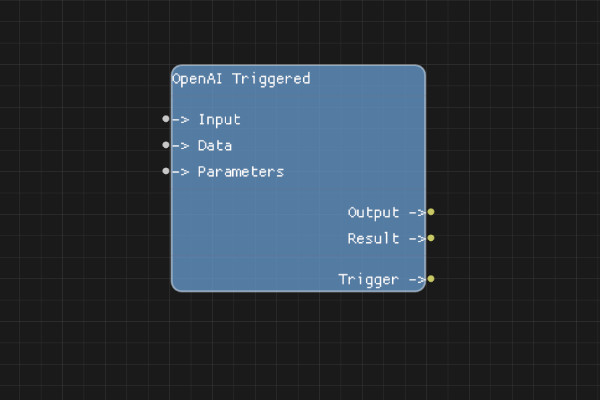
Description
The OpenAI Triggered Event node is a special event node that starts a flow when OpenAI's chat completion API calls a registered workflow function. It works similarly to the MCP Triggered Event node but is specifically designed to be triggered by OpenAI function calls.
To use this node, your workflow must contain at least one OpenAI Triggered Event node and be registered with the OpenAI Manager. When OpenAI calls the registered function, execution begins from this node and continues along the connected execution links.
Execution Inputs
None (this is an entry point node)
Variable Inputs
- Input (string): Text input from the OpenAI function call
- Data (json): JSON data from the OpenAI function call
- Parameters (json): Function call parameters as JSON object
Execution Outputs
- Trigger (execution): Execution begins here when the workflow is triggered via OpenAI function call
Variable Outputs
- Output (string): Text output to return to OpenAI
- Result (json): JSON result to return to OpenAI
Special Notes
- This node is only used when workflows are triggered via OpenAI function calls
- The workflow must be registered with the OpenAI Manager to be callable
- Execution starts from this node and then follows the normal execution links in the flow
- Input, Data, and Parameters contain the function call arguments from OpenAI
- Output and Result are used to return values back to OpenAI
- Works alongside other event nodes:
- Button Event: Triggered manually via the UI
- Cron Event: Triggered on a schedule
- MCP Triggered Event: Triggered by external MCP clients
- OpenAI Triggered Event: Triggered by OpenAI function calls
Example Usage
Create a workflow that you want OpenAI to call as a function:
- Add an OpenAI Triggered Event node from the Events category
- Connect its Trigger output to your workflow logic
- Use Parameters input to access function call arguments
- Set Output or Result to return values to OpenAI
- Register the workflow with OpenAI Manager
- When OpenAI calls the function, the flow executes starting from this node
Flow Download Example
Placeholder for flow download example
Additional Pictures
Placeholder for additional node images and examples